Every screen under your control — from your desk, or from your phone.
Easy Display turns the monitors connected to your Windows 10/11 PC into digital signage. Send images, video, PowerPoint, slideshows, or live web pages to each display independently — on its own or as a rotating playlist — and it keeps playing unattended. Whether you're running digital signage, a classroom, or a multi-screen event, Easy Display keeps everything organised and running smoothly.
New in Version 4
Version 4 is a complete rebuild — a redesigned experience, faster and more reliable, with new ways to manage and control your screens. Two headline features arrive as an add-on: remote control from any browser, and scheduling.
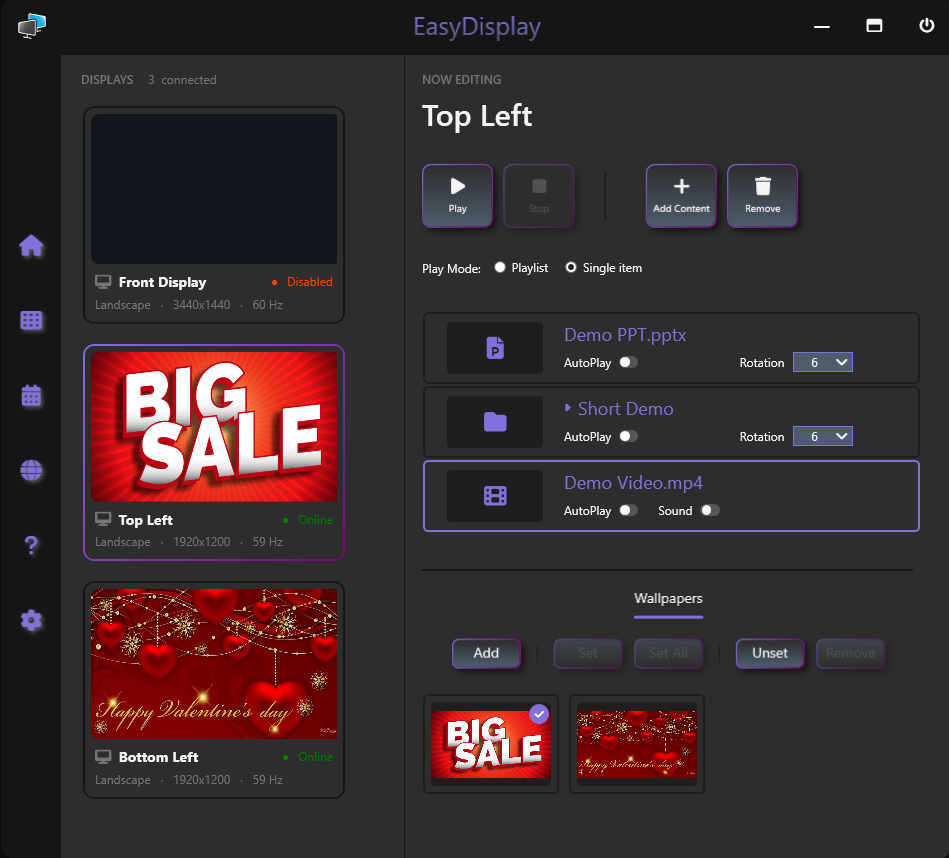
- New Command Center — add, play, stop and manage content on each display from one place.
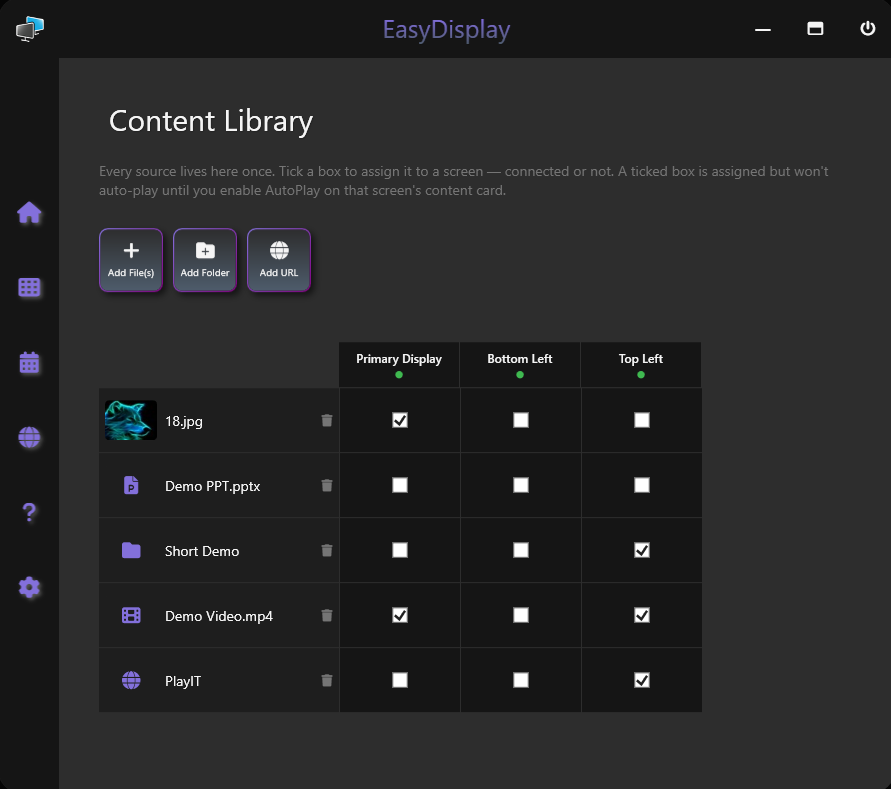
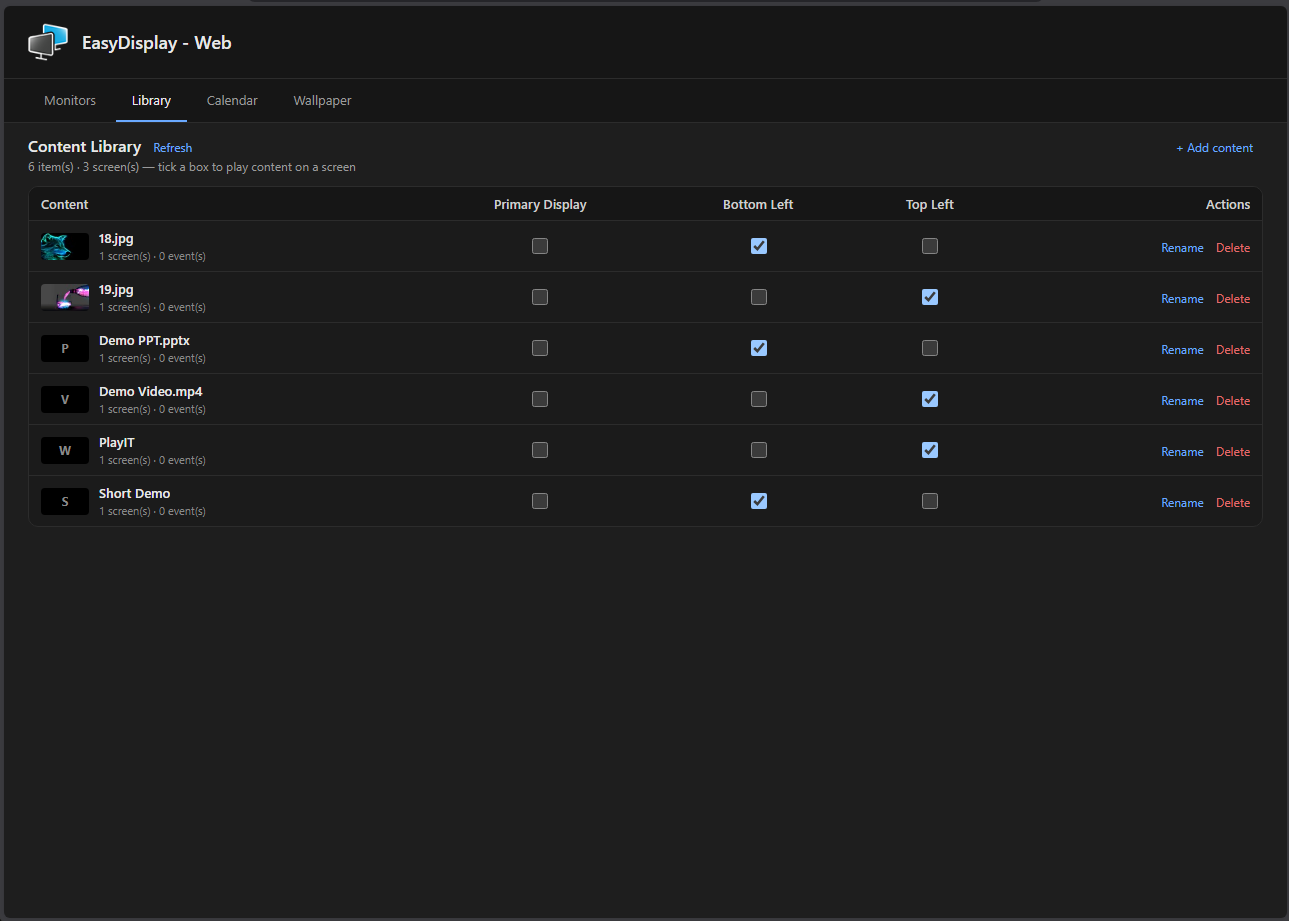
- Shared Content Library — add your content once and assign it across every screen from a single grid.
- Add web pages by URL — with automatic page rotation and periodic refresh.
- Full video playback.
- Playlist or Single-item mode — choose how each display plays its content.
- New presentation options — background colour and image scaling.
- Improved wallpaper management.
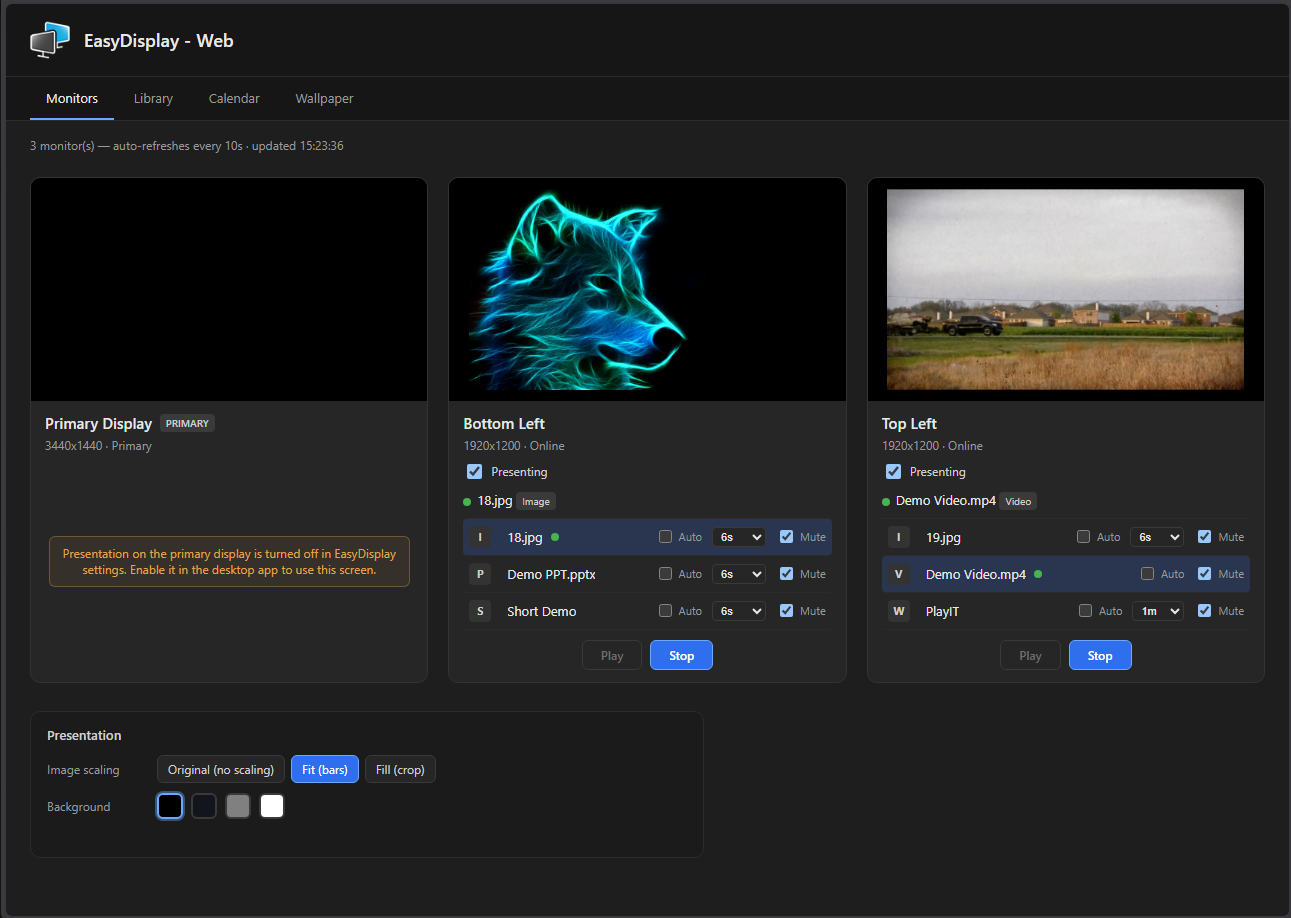
- New Web Access add-on — monitor and control your screens from any phone or browser on your network.
- New Calendar add-on — schedule exactly what plays and when on each screen.
- Rewritten, easier-to-follow in-app Help, plus many stability improvements under the hood.
Key Features
- Multi-monitor management — see every connected display at a glance with live preview thumbnails.
- Five content types — images, video, PowerPoint, folders (slideshows), and live web pages.
- Shared Content Library — one place to manage everything, assign to any screen with a tick.
- Drag & drop — add files or folders instantly by dropping them into the app.
- Per-item control — AutoPlay, mute, and rotation interval, configured independently per item.
- Wallpaper library — assign custom wallpapers to individual displays.
- Presentation options — background colour and image scaling to fit any screen.
- Dark & light theme — switch to match your environment.
- Smart power settings — prevent your computer from sleeping during a presentation.
Web Access & Calendar Add-on · one-time $9.99
Unlock two premium features with a single one-time purchase (free updates, no subscription):
- Web Access — open a browser on any phone, tablet or PC on your network and control your screens remotely: manage the content library (including uploads), start and stop playback, adjust presentation settings, and assign wallpapers. Everything you change stays instantly in sync with the desktop app.
- Calendar — schedule exactly what plays and when on each screen. Run a promo every weekday morning, put a special slide up for an event — Easy Display shows it on the right screens at the right time, then returns them to their normal content afterwards.
Quick Start
- Open Easy Display — all connected monitors appear automatically.
- Open the Content Library and add your files, folders or web pages.
- Tick a screen to assign content to it, or drag & drop files straight in.
- Select a display, then use the Command Center to play, stop and fine-tune it.
- Turn on AutoPlay for any content that should start on its own.
- With the add-on: open Web Access to control everything from your phone, or use the Calendar to schedule what plays and when.
Download
Easy Display is free on the Microsoft Store, with Web Access and the Calendar available as a one-time add-on.
Get Easy Display on the Microsoft Store
Support
Questions or feedback? We'd love to hear from you — reach us anytime and we'll be glad to help.
© 2026 ScreenSoft – All rights reserved.